
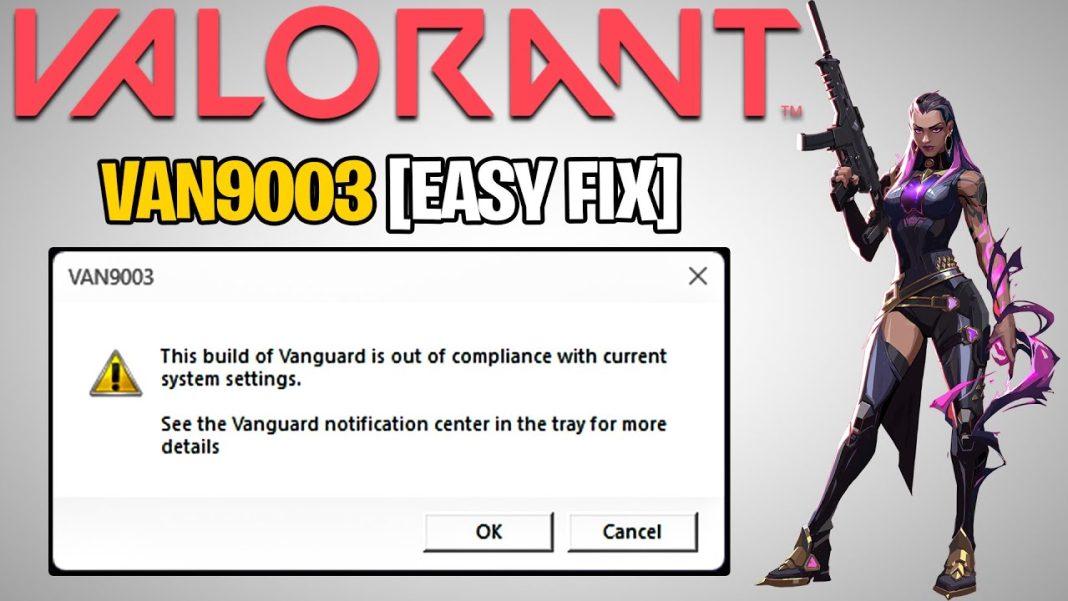

If you’re encountering the “VAN9003” error message followed by “This build of Vanguard is out of compliance with current system settings” in Valorant, here’s a guide on how to resolve it.
Valorant is an FPS game developed by Riot Games, where players engage in 5v5 tactical battles. The objective is to attack and defend within 13 rounds using a combination of weapons and unique abilities. With only one life per round, quick thinking is crucial.
The game offers various modes, including competitive, unranked, deathmatch, and spike rush. Players can select from a range of agents, each equipped with distinct abilities. No two agents play the same, leading to diverse gameplay and unforgettable moments.
Maps in Valorant are designed to encourage teamwork, strategic plays, and clutch moments, allowing players to showcase their intelligence and skills.
Now, let’s focus on resolving the VAN9003 error in Valorant through the following steps.
What does the VAN9003 error mean?
The VAN9003 error in Valorant indicates that secure boot is not enabled on your PC. Secure boot and Trusted Platform Module (TPM) are security features that ensure the safe booting of programs in Windows.
Vanguard, the anti-cheat system used in Valorant, requires these features to recognize a system’s trusted state. When secure boot or TPM is disabled, Valorant won’t launch, resulting in the VAN9003 error.
To check if secure boot is enabled on your PC, follow these steps:
- Press the Windows button and search for “msinfo32” to open System Information.
- In System Summary, look for the BIOS Mode entry. It should be listed as “UEFI.”
- Check the Secure Boot State entry. It should be indicated as “On.”
If secure boot is not enabled, you need to enable it to resolve the VAN9003 error. Please refer to the following guide for instructions on enabling secure boot on your PC.
How to fix the VAN9003 error in Valorant
To resolve the VAN9003 error in Valorant, you can follow these steps to enable secure boot on your computer:
- Restart your computer.
- Press the designated key (usually “F2”) during startup to enter the BIOS settings.
- For Alienware, Inspiron, and Vostro models, navigate to the Secure Boot section and change the setting to “Enabled”. Press F10 to save and exit.
- For OptiPlex, Precision, Wyse, and XPS models, locate the Secure Boot settings and enable it by selecting the appropriate options. Apply the changes, then exit and save the settings.
- After saving and exiting the BIOS, your computer will restart.
- Launch Valorant again, and the VAN9003 error should no longer appear.
By enabling secure boot through the BIOS settings, Valorant will recognize your system as trusted, allowing the game to launch without encountering the VAN9003 error.


